
Welcome to Advanced Reservations 🎉
Here’s How to Use It Like a Pro
First off — thank you for upgrading your account and unlocking Advanced Reservations. This feature was built for boaters who like a little more certainty in their plans, without losing the flexibility that makes cruising the BVI so special.
Below is a simple walkthrough on how to use Advanced Reservations, plus a few pro tips to help you avoid the most common hiccups.
How Advanced Reservations Work
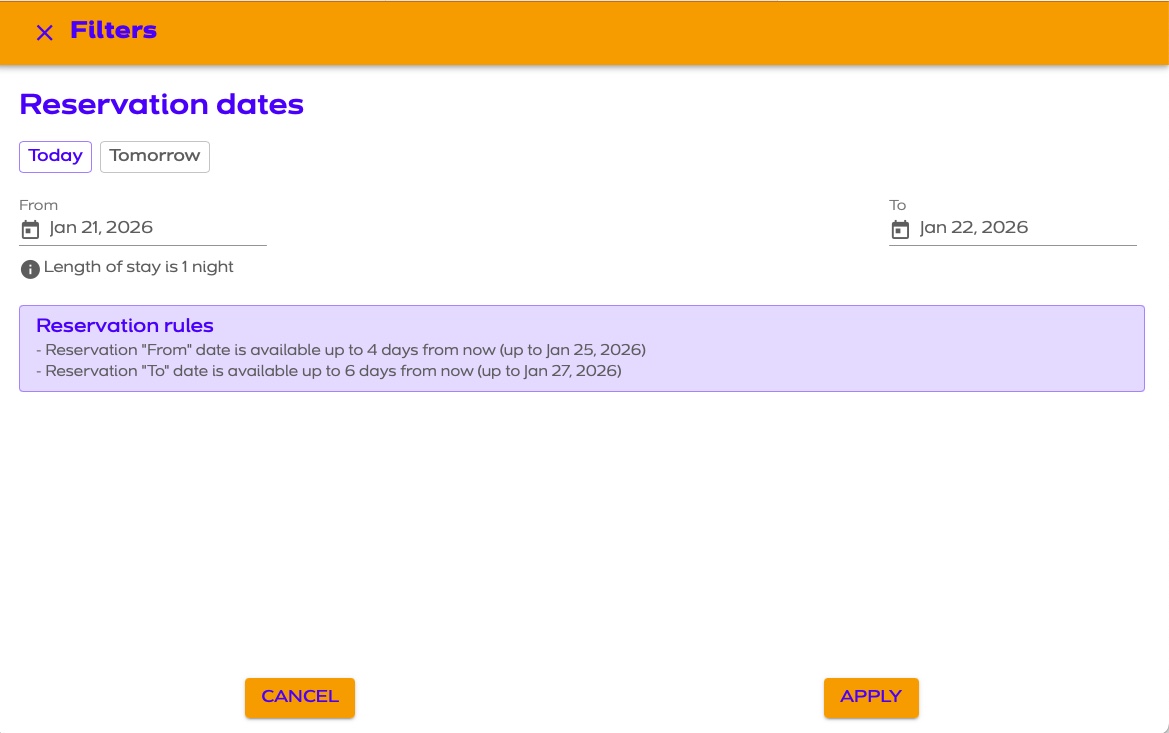
Advanced Reservations become active the day before your trip begins. Once active, you can reserve eligible moorings 2–4 days in advance, depending on availability. When you open the app, you’ll notice a date selector in the top-left corner of the screen.
Step 1: Choose the Day You Want to View
Tap the date box and select Today or Tomorrow, then hit Apply. The map will refresh and show all moorings available for that selected day.
Step 2: Reserve a Mooring
Once you see an available mooring:
- Tap the mooring
- Complete payment
- You’re all set ✅ That mooring is now reserved under your account.
Reserving 2–4 Days in Advance
To look further ahead (once Advanced Reservations are active):
- Use the “From” and “To” date drop-downs
- Select the date(s) you want to reserve
- Tap Apply
The map will then display only moorings available for your selected date range.
How to Find Your Reserved Mooring
When you reserve a mooring, it will show up on the map as a red flag 🚩.
Important tip:
Make sure your map is set to the correct day.
- If your reservation is for tomorrow
- But your map is set to Today
- You won’t see the red flag
Alternate Way to View Reservations
You can always see your reservations by:
- Tapping the three horizontal lines (top right)
- Selecting Bookings This shows past, current, and future reservations all in one place.
Canceling a Reservation
Plans change — and now you have more flexibility. You can cancel a reservation in two ways:
Option 1: From the Map
- Tap the red flag
- Select Reservation Details
- Tap Cancel
Option 2: From Bookings
- Open the menu (three lines)
- Tap Bookings
- Select the reservation (current or future)
- Tap Cancel
That’s it — no emails, no support tickets required.
Pro Tips (Read These 👇)
- Boat name is required The system will not allow a reservation without one. Don’t know your boat name yet? 👉 Enter “TBD – Your Last Name” and update it later.
- Check your trip dates If you’ve been to the BVI before, make sure your trip dates reflect your current trip — not a previous one.
- Verify when Advanced Reservations are active Open the menu → tap Profile to see the exact dates your Advanced Reservation window is enabled.
- First Come, First Serve moorings are not reservable These should only be paid for after you’ve physically tied up.
